Partner Portal User Guide

Report

A. Sales Report by Merchant

1

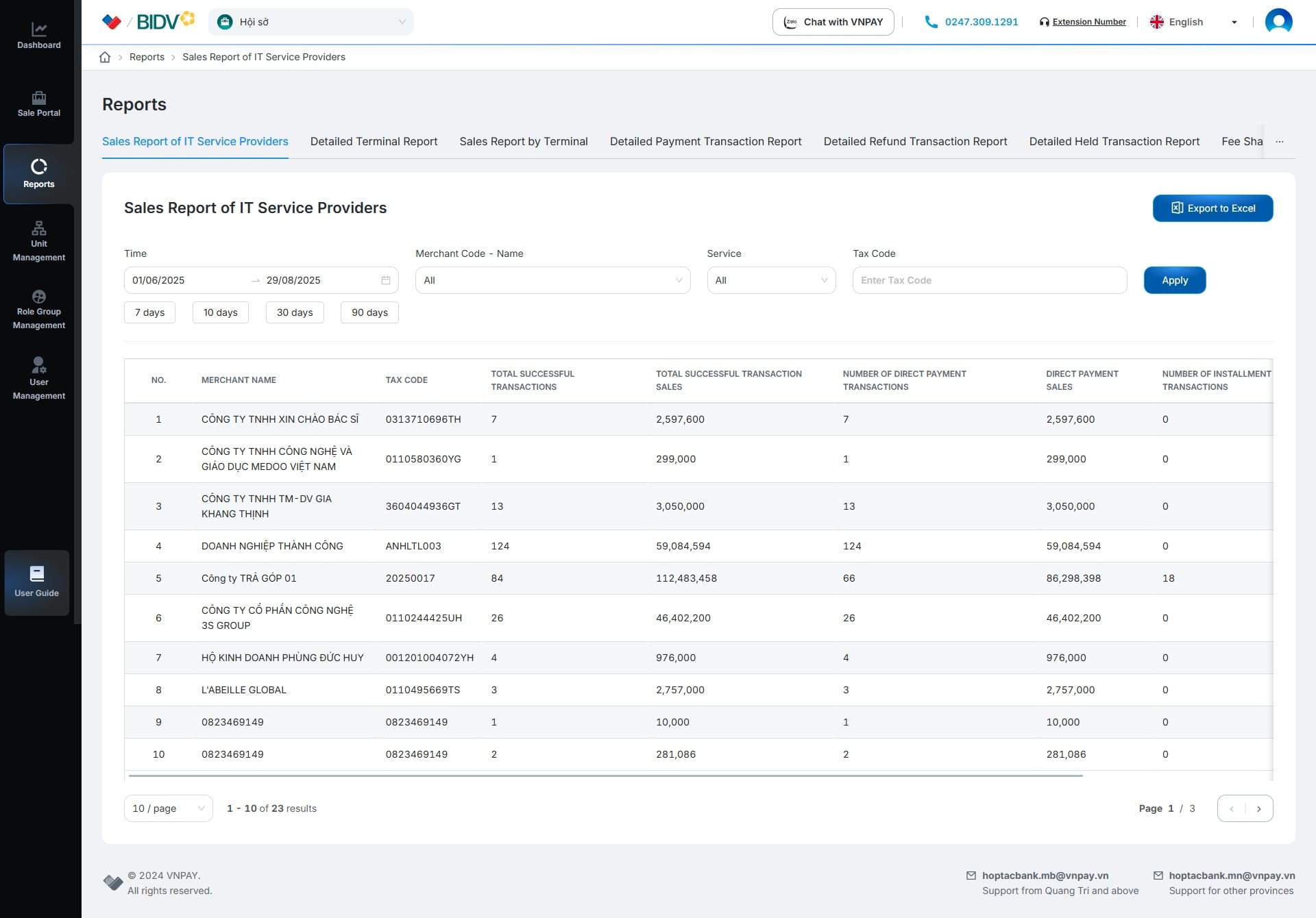
On the Reports screen

  • select the [Sales Report by Merchant] tab.
2

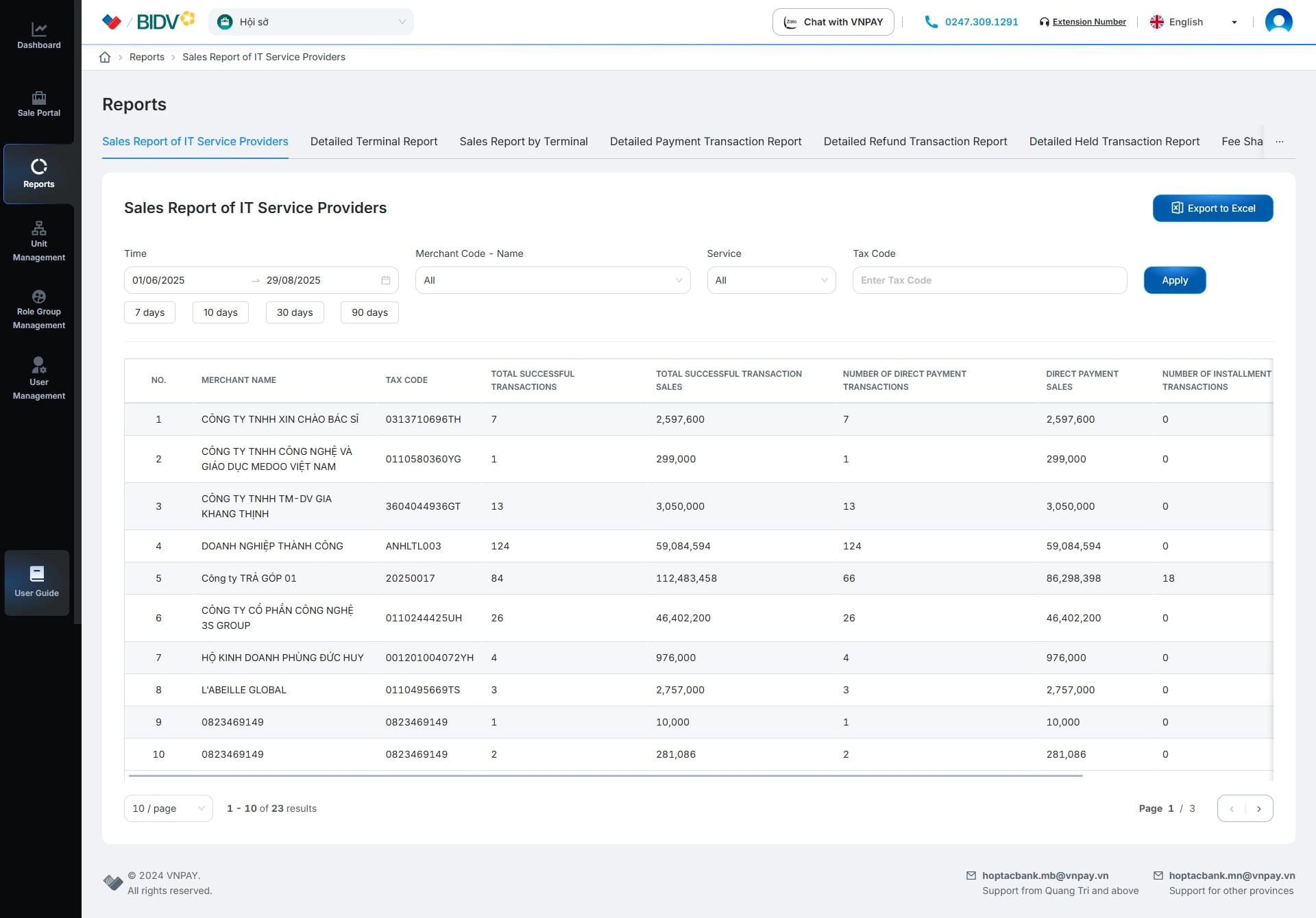
On the Sales Report by Merchant screen
  • Enter the search criteria and click [Apply]
  • Or press [Apply] to display the list of sales reports by merchant
3

On the Sales Report by Merchant screen

  • Click [Export Excel] to download the file

B. Detailed Terminal Report

1

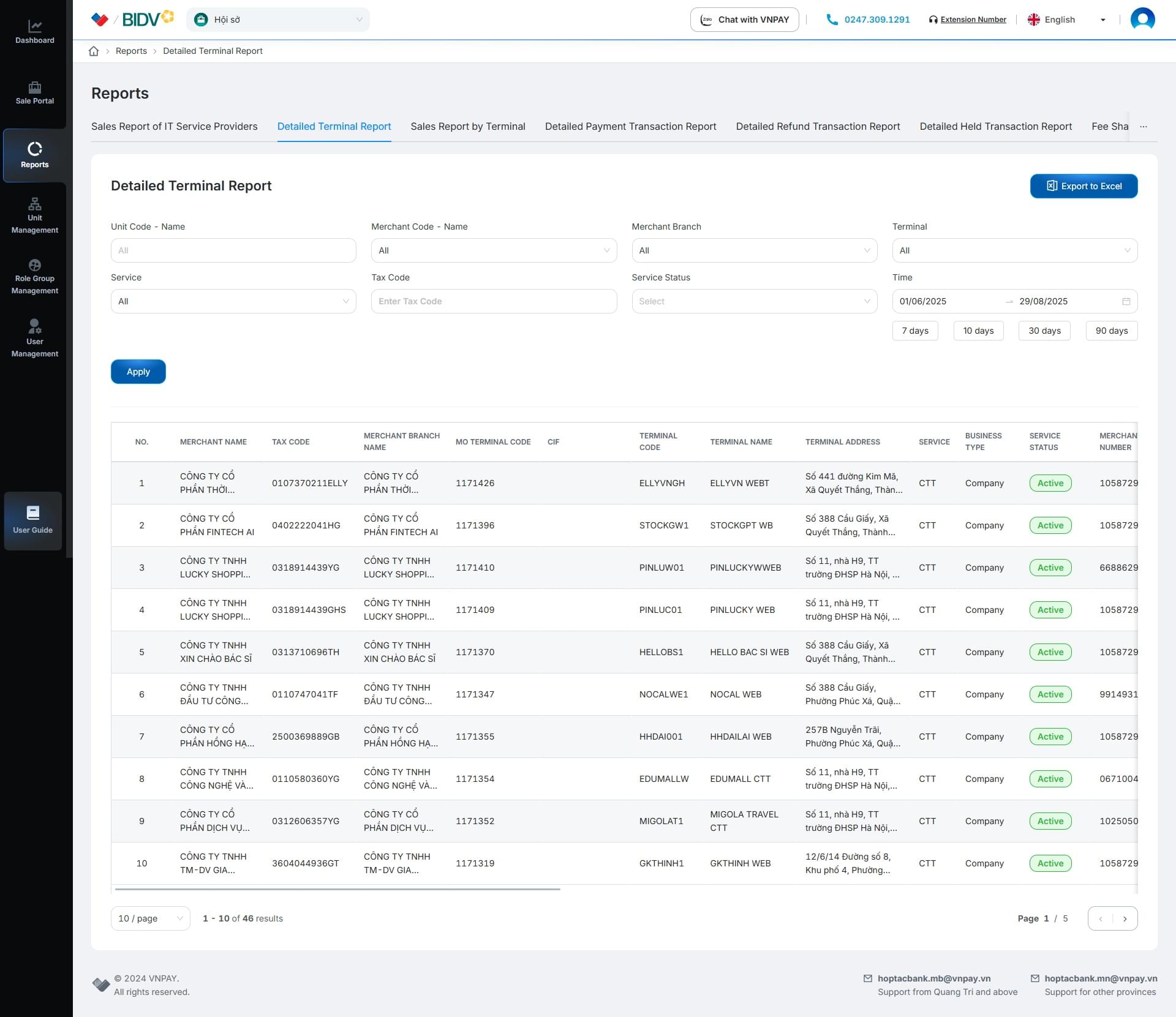
On the Reports screen

  • select the [Detailed Terminal Report] tab.
2

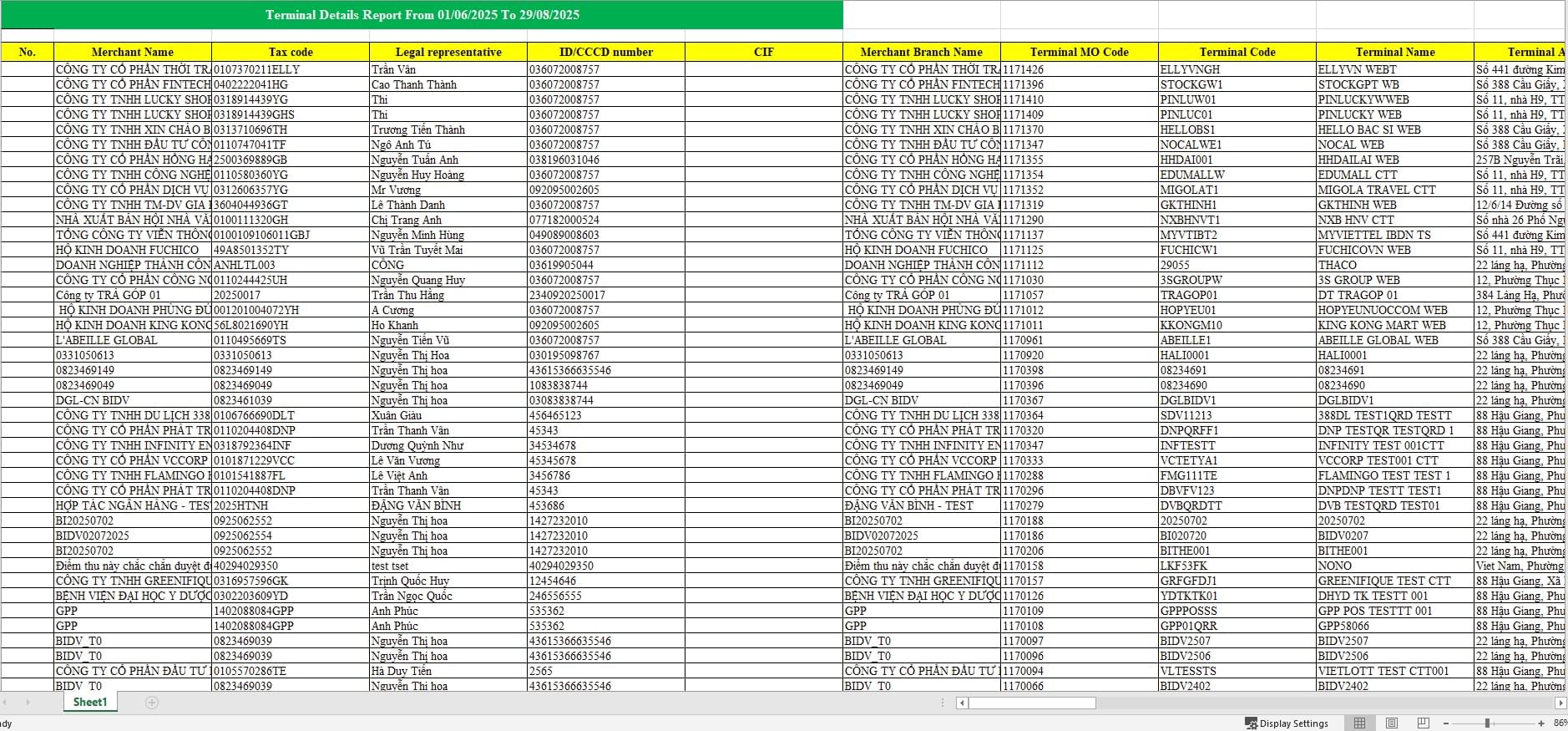
On the Detailed Terminal Report screen

  • Enter the search criteria and click [Apply]
  • Or click [Apply] directly to display the detailed terminal report.
3

On the Detailed Terminal Report screen

  • Click [Export to Excel] to download the exported file to your computer.

C. Sales Report by Terminal

1

On the Reports screen

  • select the [Sales Report by Terminal] tab.
2

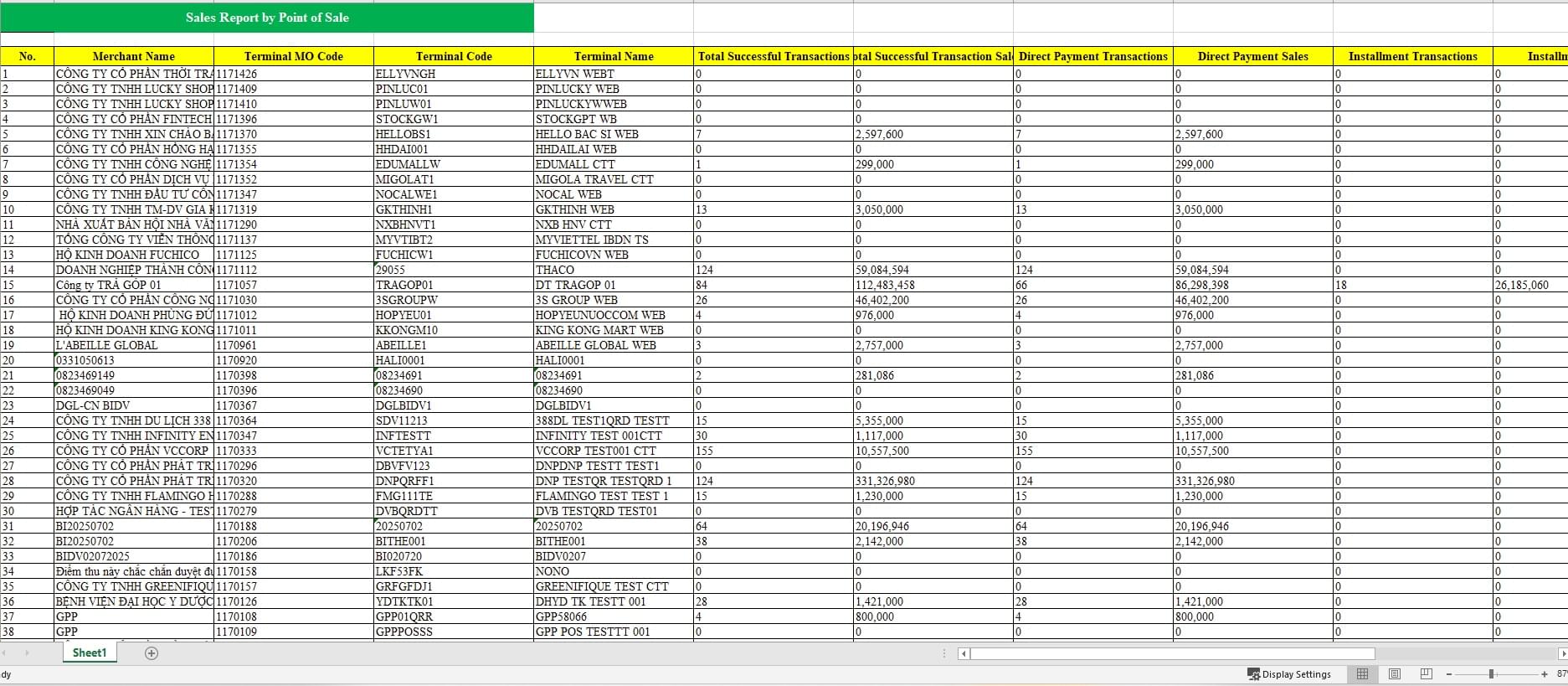
On the Sales Report by Terminal screen

  • Enter the search criteria and click [Apply]
  • Or click [Apply] directly to display the sales report by terminal.
3

On the Terminal Details Report screen

  • Click [Export to Excel] to download the exported file to your computer.

D. Transaction Details Report

1

On the Reports screen

  • select the [Transaction Details Report] tab.
2

On the Transaction Details Report screen
  • Enter the search criteria and click [Apply]
  • Or click [Apply] directly to display the list of transactions.
3

On the screen Transaction Details Report screen

  • Click [Export to Excel] to download the exported file to your computer.

E. Refund Transaction Details Report

1

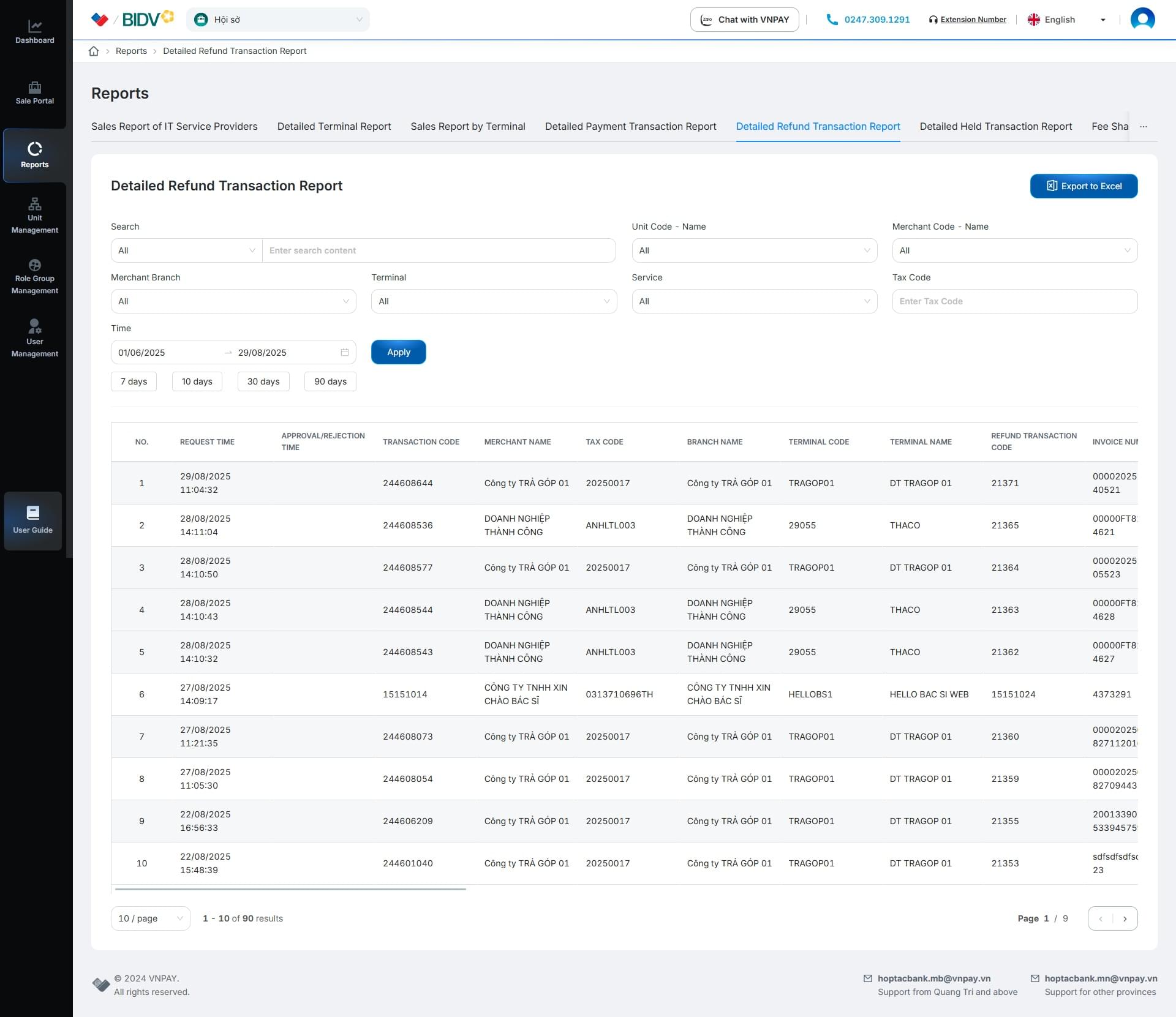
On the Reports screen

  • select the [Refund Transaction Details Report] tab.
2

On the Refund Transaction Details Report screen
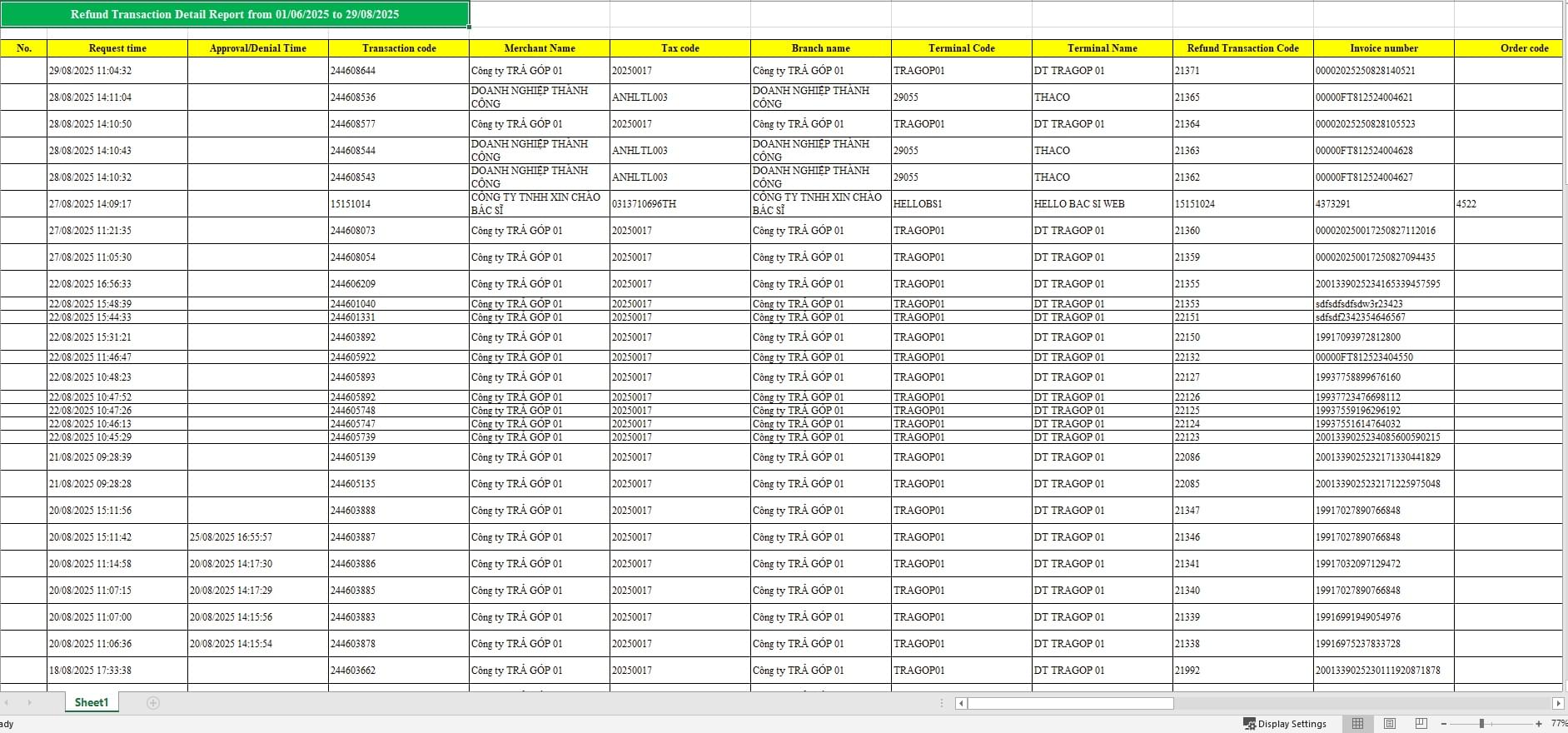
  • Enter the search criteria and click [Apply]
  • Or click [Apply] directly to display the list of refund transactions.
3

On the screen Refund Transaction Details Report screen

  • Click [Export to Excel] to download the exported file to your computer.

F. Hold Transaction Details Report

1

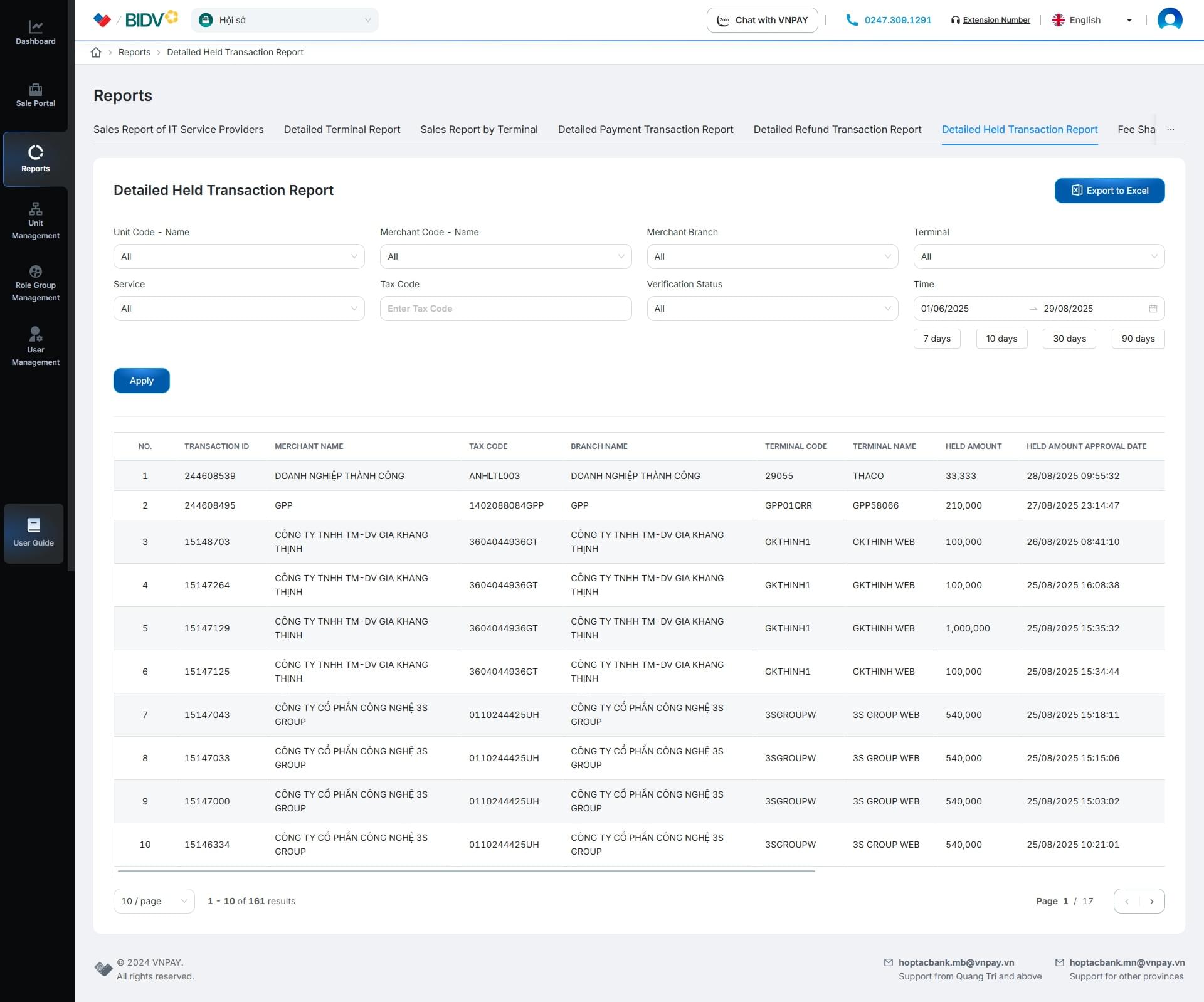
On the Reports screen

  • select the [Hold Transaction Details Report] tab.
2

On the Hold Transaction Details Report screen
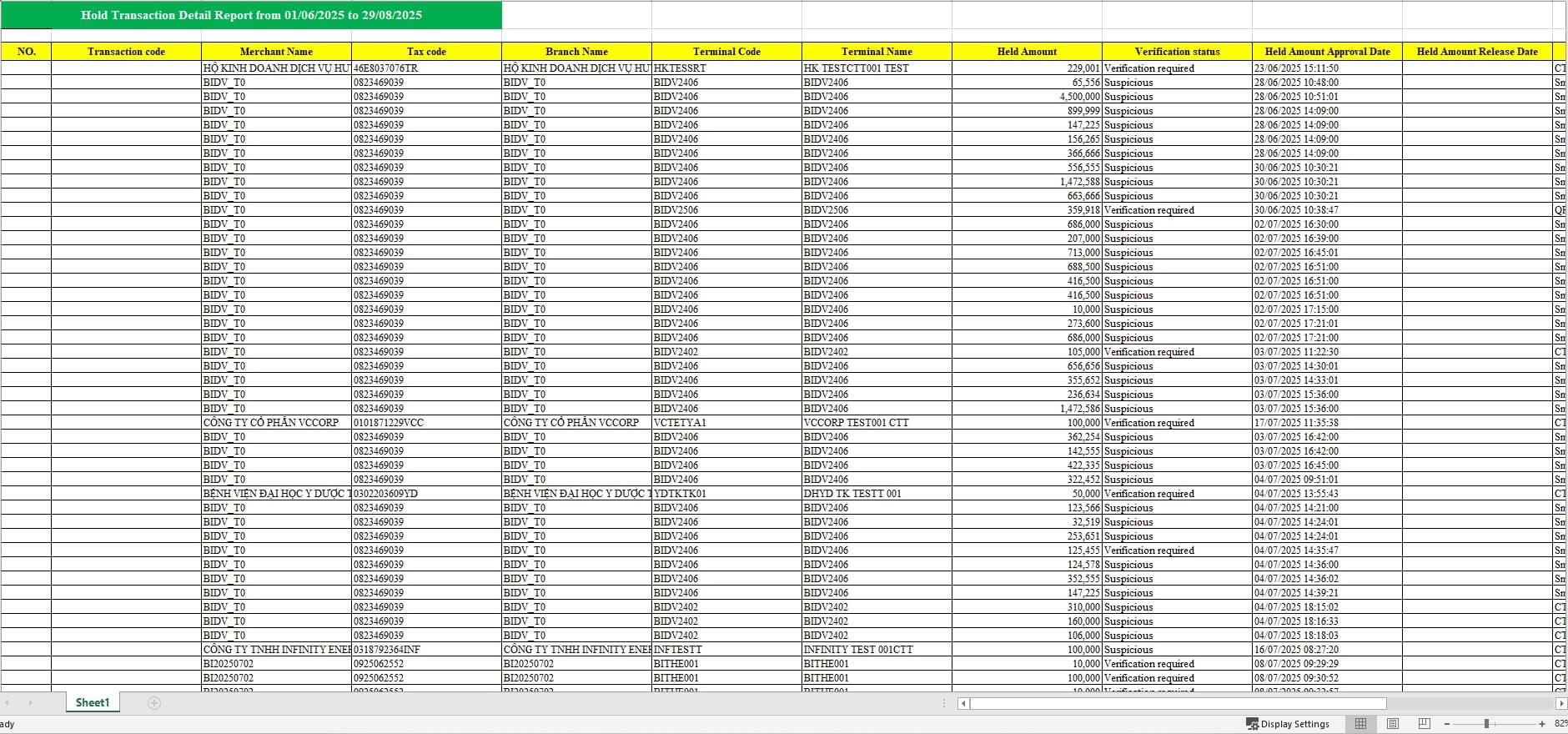
  • Enter the search criteria and click [Apply]
  • Or click [Apply] directly to display the list of hold transactions.
3

On the screen Hold Transaction Details Report screen

  • Click [Export to Excel] to download the exported file to your computer.

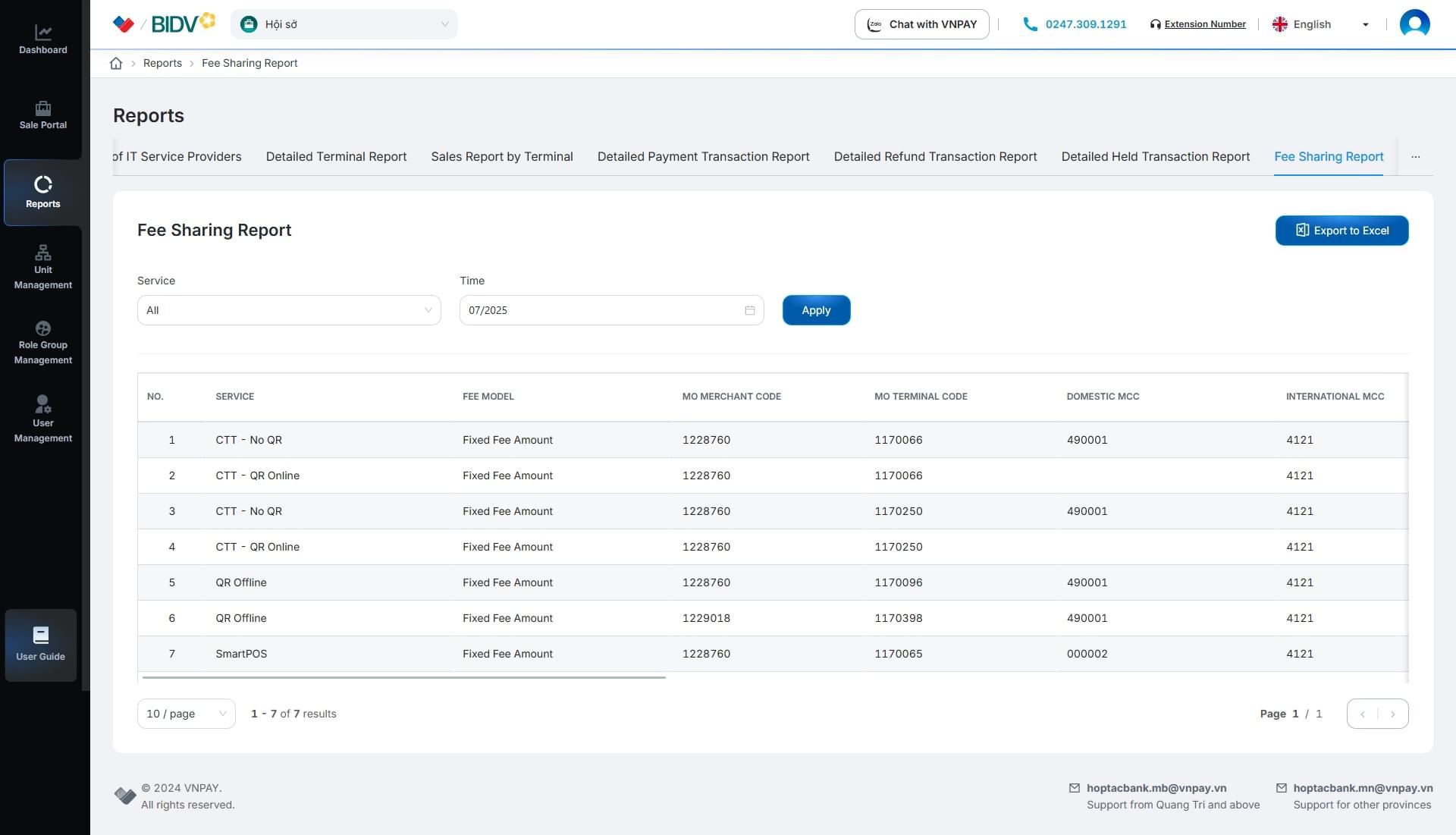
G. Fee Sharing Report

1

On the Reports screen

  • select the Fee Sharing Report tab.
2

On the Fee Sharing Report screen

  • Enter the search criteria and click [Apply]
  • Or click [Apply] directly to display the fee sharing list.
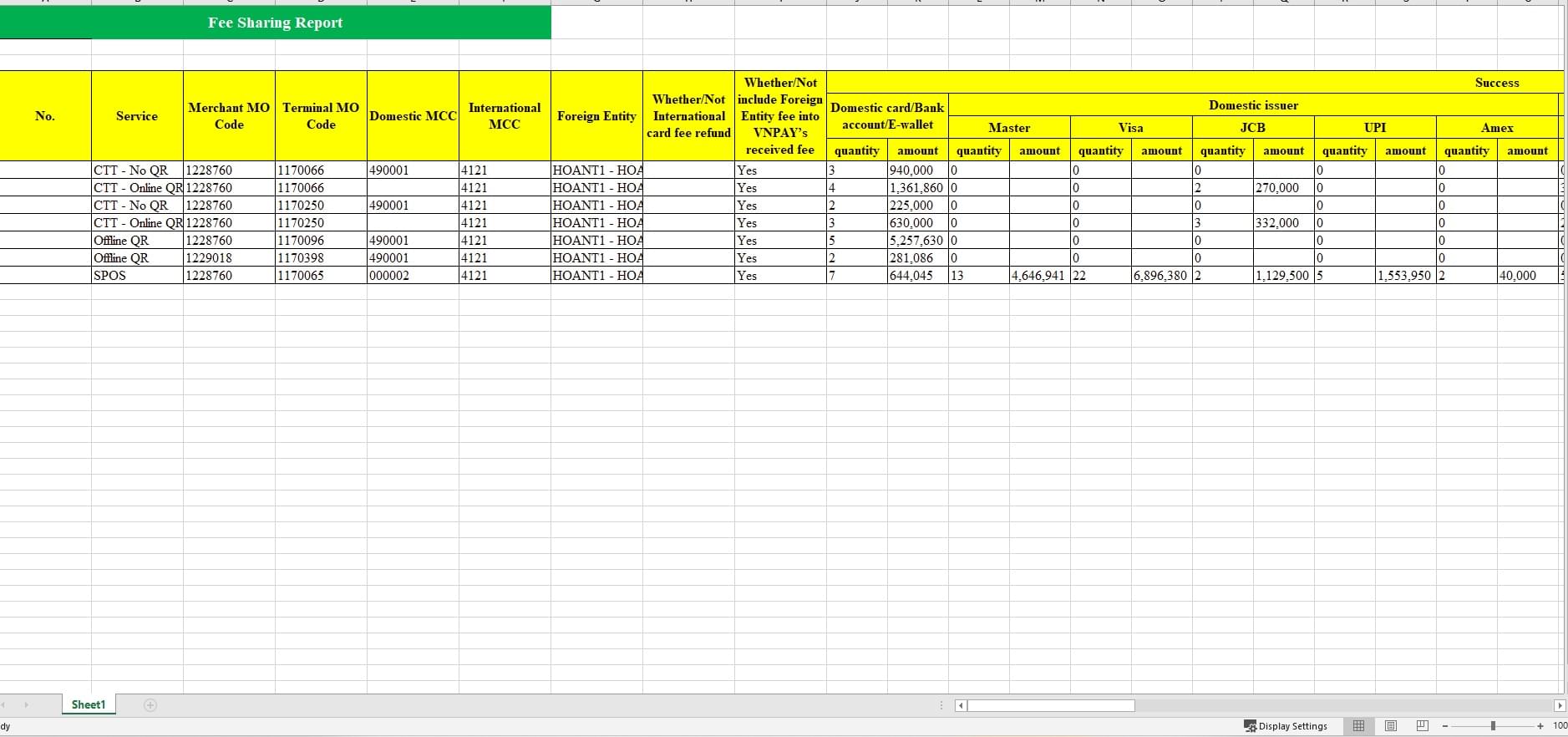
3

On the Fee Sharing Report screen

  • Click [Export Excel] to download the exported file to your computer.

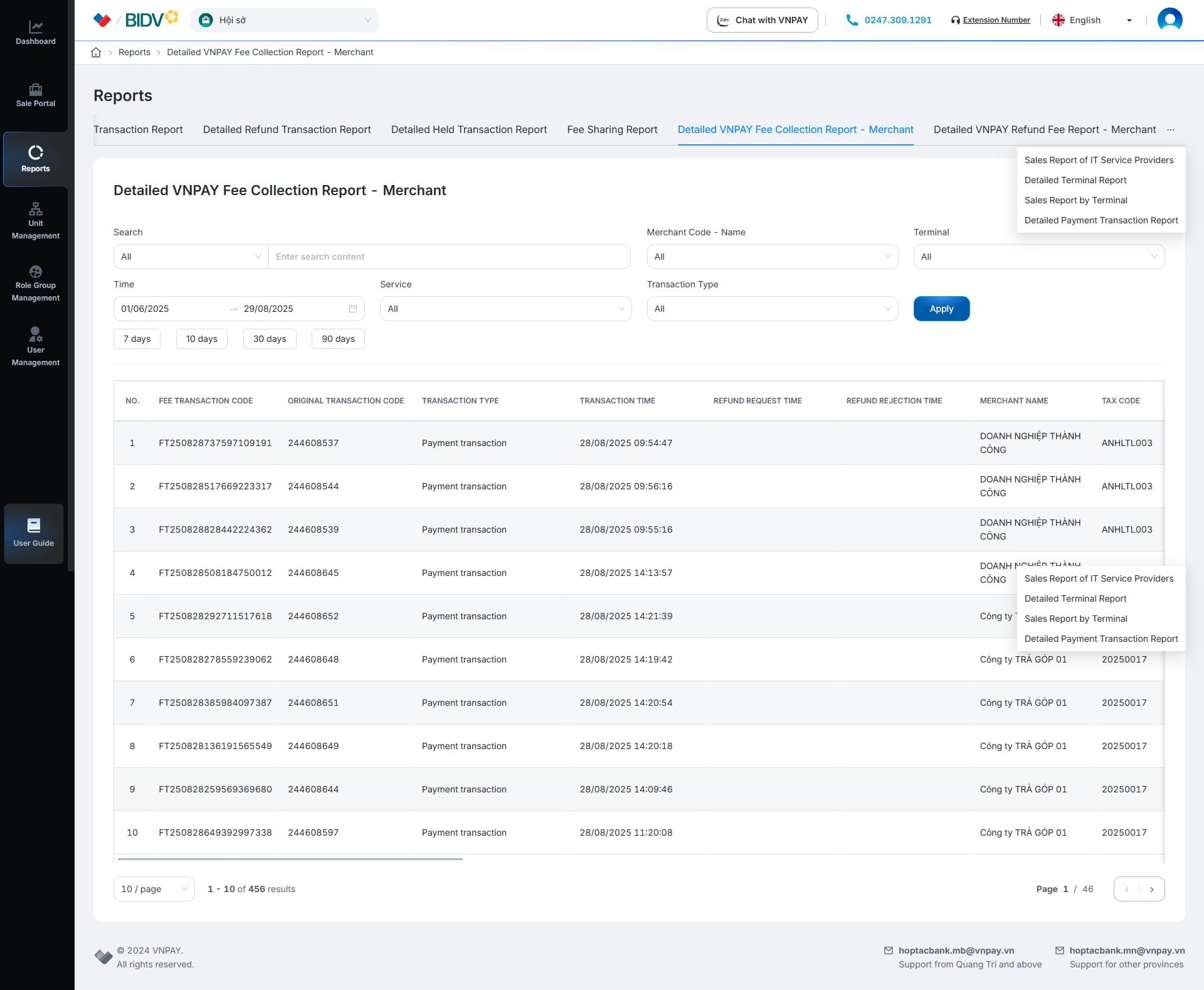
H. Detailed VNPAY Fee Collection Report - Merchant

1

On the Reports screen

  • select the Detailed VNPAY Fee Collection Report - Merchant tab.
2

On the Detailed VNPAY Fee Collection Report - Merchant screen
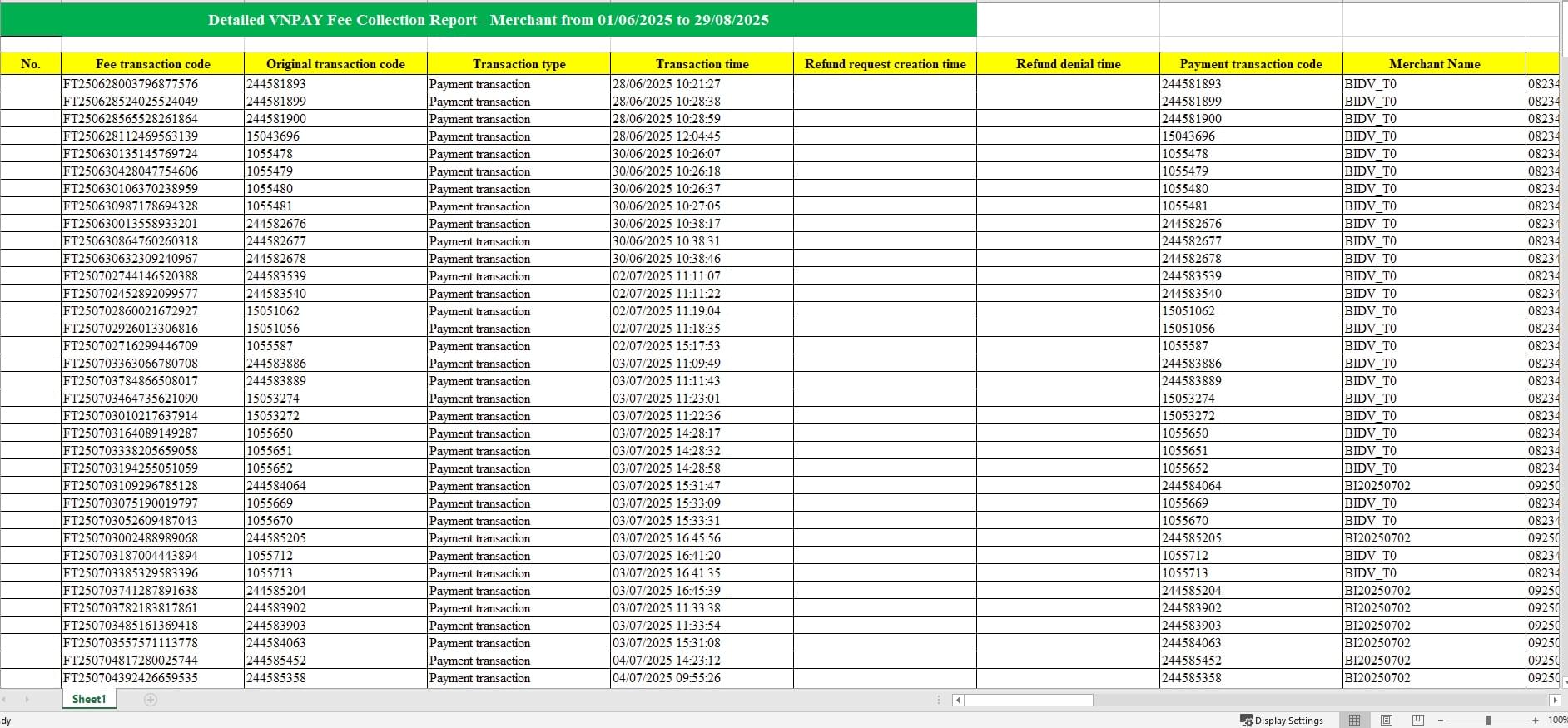
  • Enter the search criteria and click [Apply]
  • Or click [Apply] directly to display the detailed list.
3

On the Detailed VNPAY Fee Collection Report - Merchant screen

  • Click [Export Excel] to download the exported file to your computer.

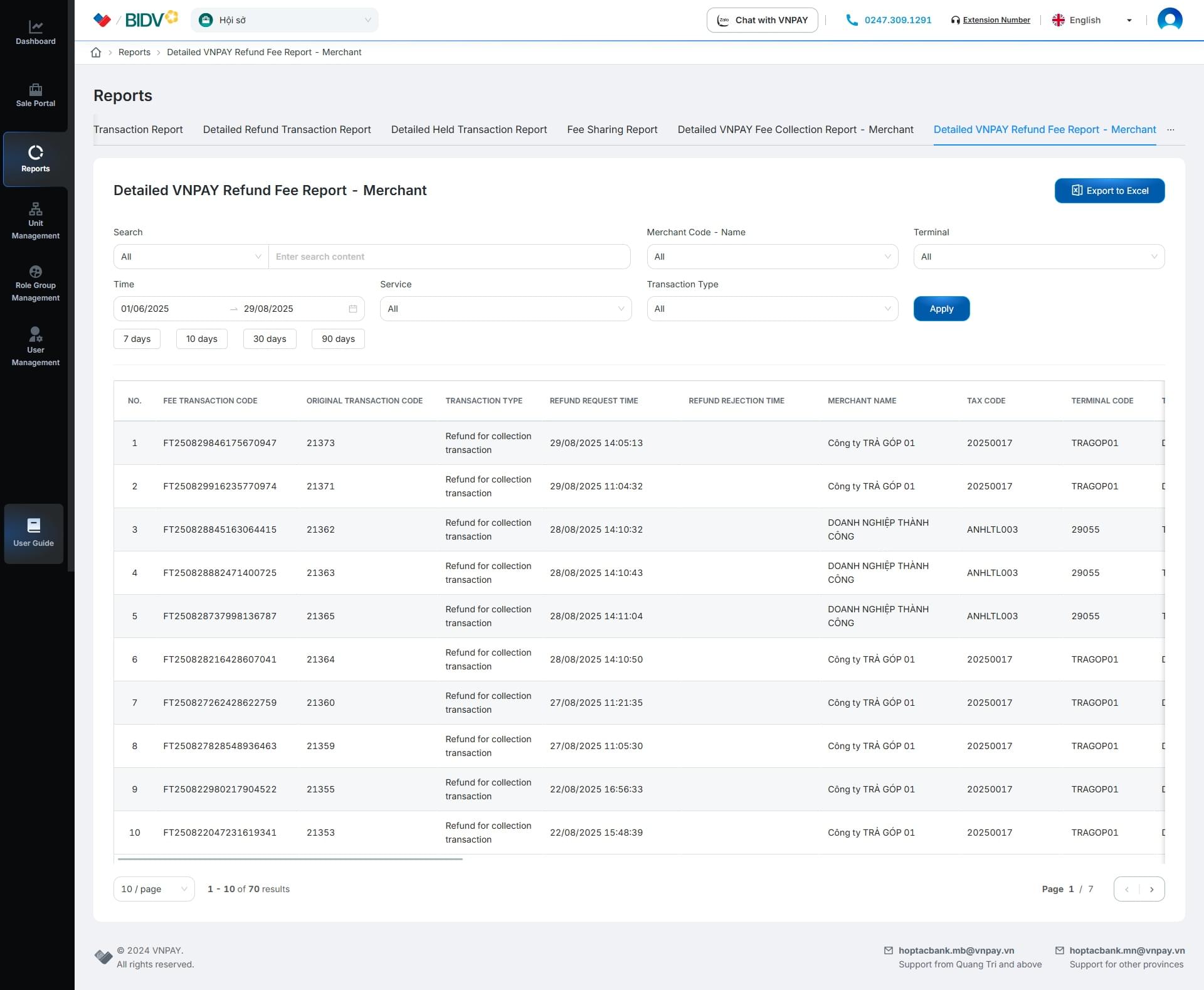
I. Detailed VNPAY Refund Fee Report - Merchant

1

On the Reports screen

  • select the Detailed VNPAY Refund Fee Report - Merchant tab.
2

On the Detailed VNPAY Refund Fee Report - Merchant screen
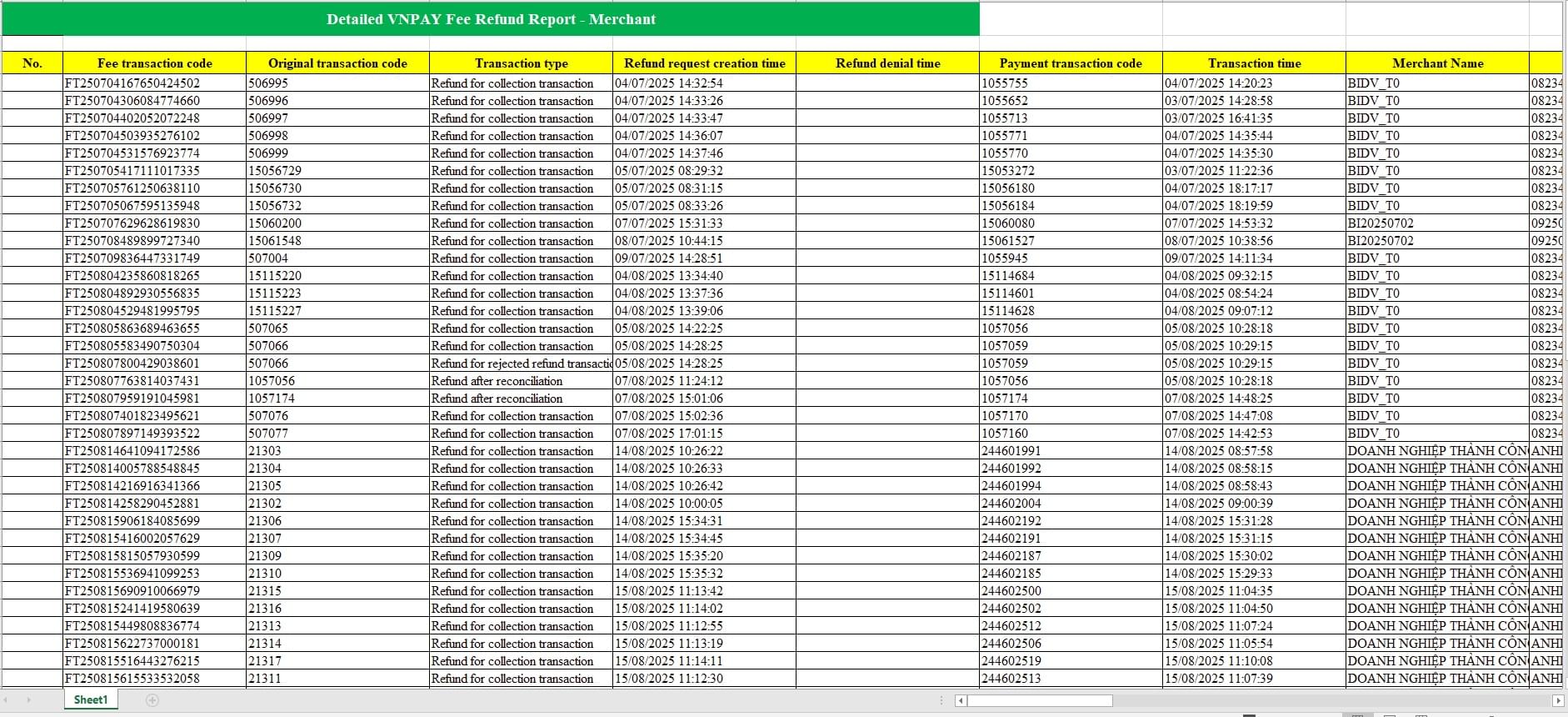
  • Enter the search criteria and click [Apply]
  • Or click [Apply] directly to display the detailed list.
3

On the Detailed VNPAY Refund Fee Report - Merchant screen

  • Click [Export Excel] to download the exported file to your computer.

J. Summary Report of Merchants

1

On the Reports screen

  • select the Summary Report of Merchants tab.
2

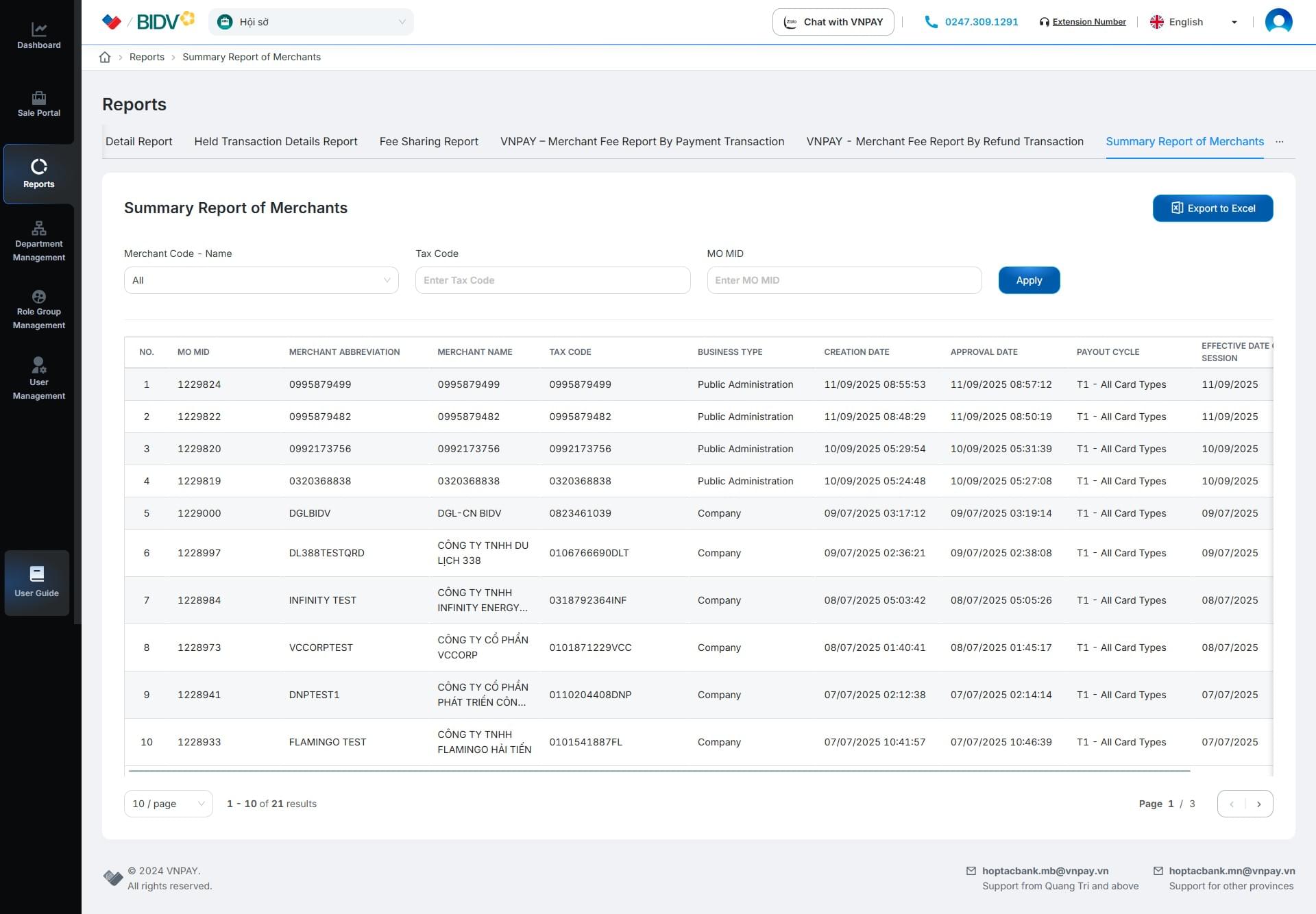
On the Summary Report of Merchants screen
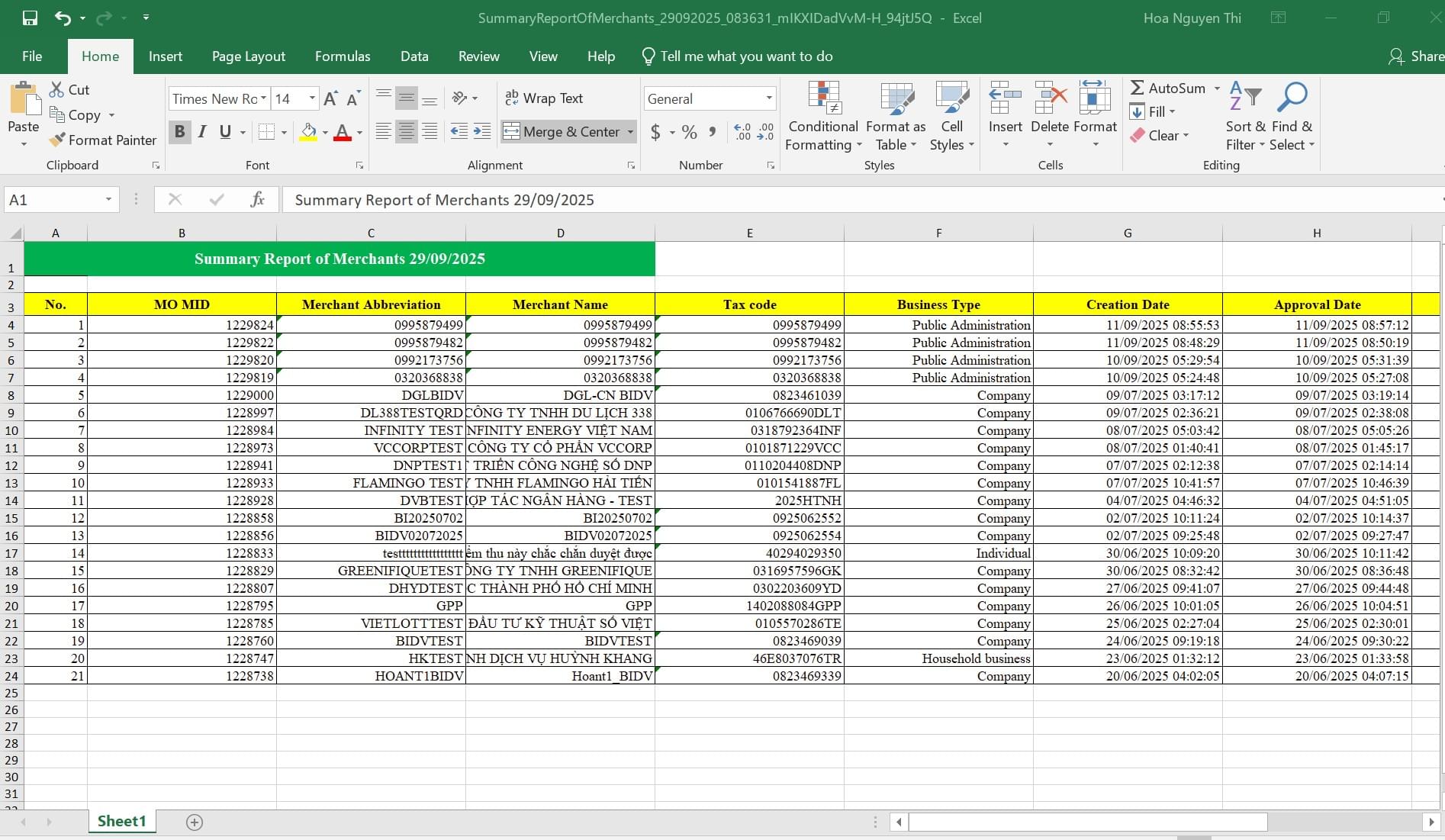
  • Enter the search criteria and click [Apply]
  • Or click [Apply] directly display the consolidated list of merchants.
3

On the Summary Report of Merchants screen

  • Click [Export Excel] to download the exported file to your computer.
Other Guides