Partner Portal User Guide

Forgot/Expired Password

A. Forgot Password

1

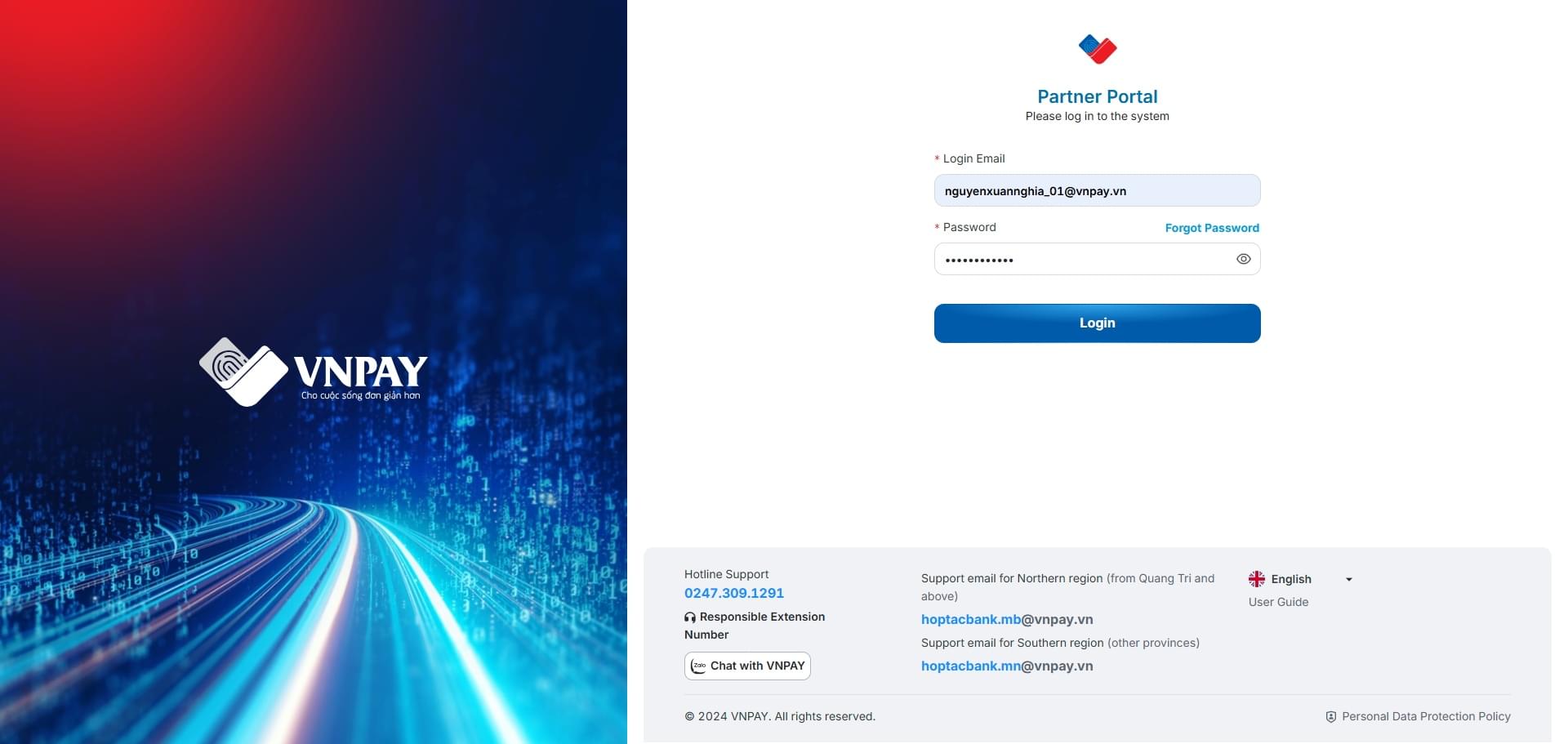
On the system Login screen

  • Click the [Forgot Password] button
2

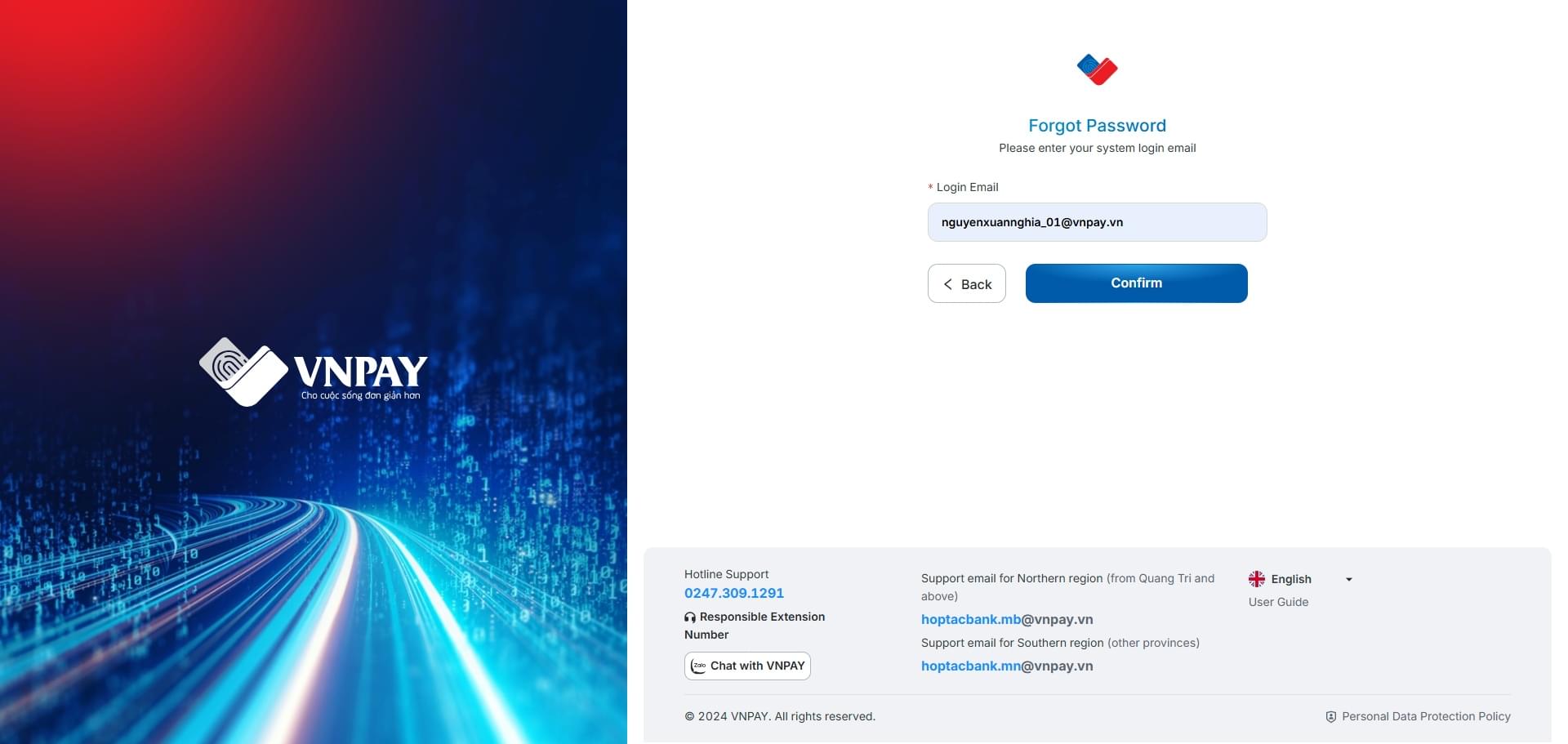
On the Forgot Password screen

  • Enter your login Email
  • Click [Back] to return to the previous screen
  • Click [Confirm] to display the Verification screen
3

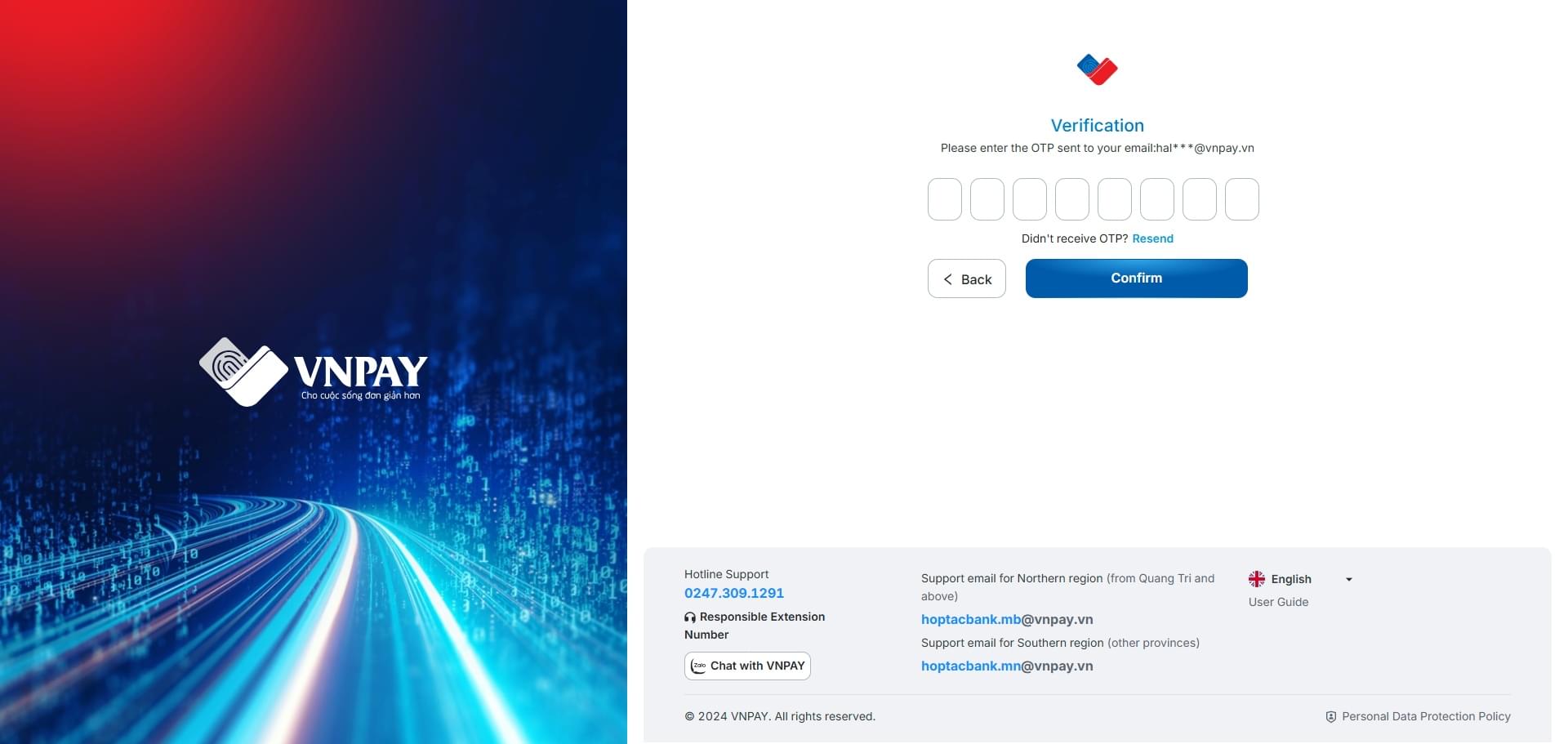
On the Verification screen

  • Enter the OTP
  • Click [Resend] to request a new OTP
  • Click [Back] to return to the previous screen
  • Click [Confirm] to display the Forgot Password screen
4

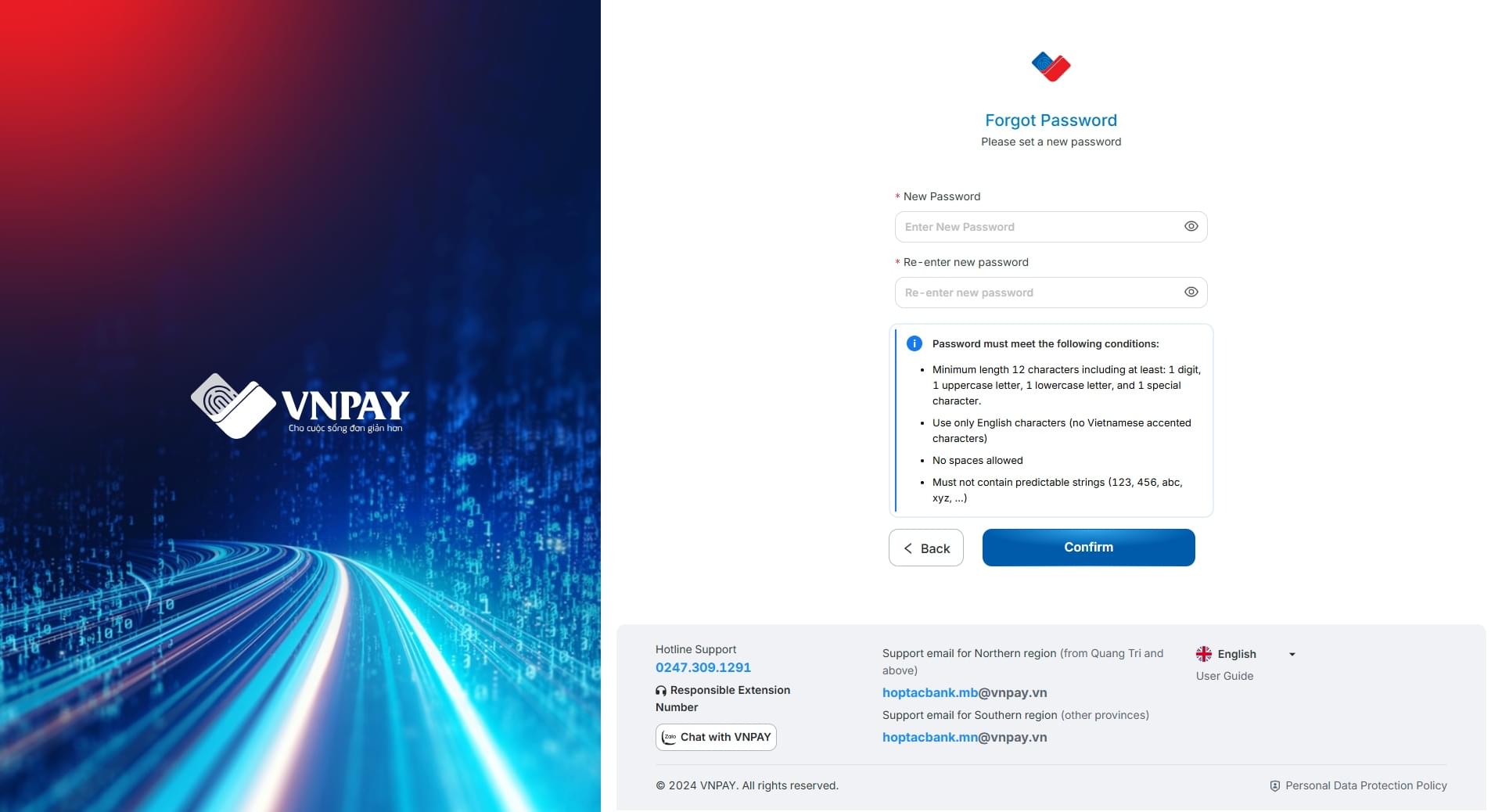
Set a New Password

  • Enter New Password and Confirm New Password
  • Click [Back] to return to the previous screen
  • Click [Confirm] to set the new password

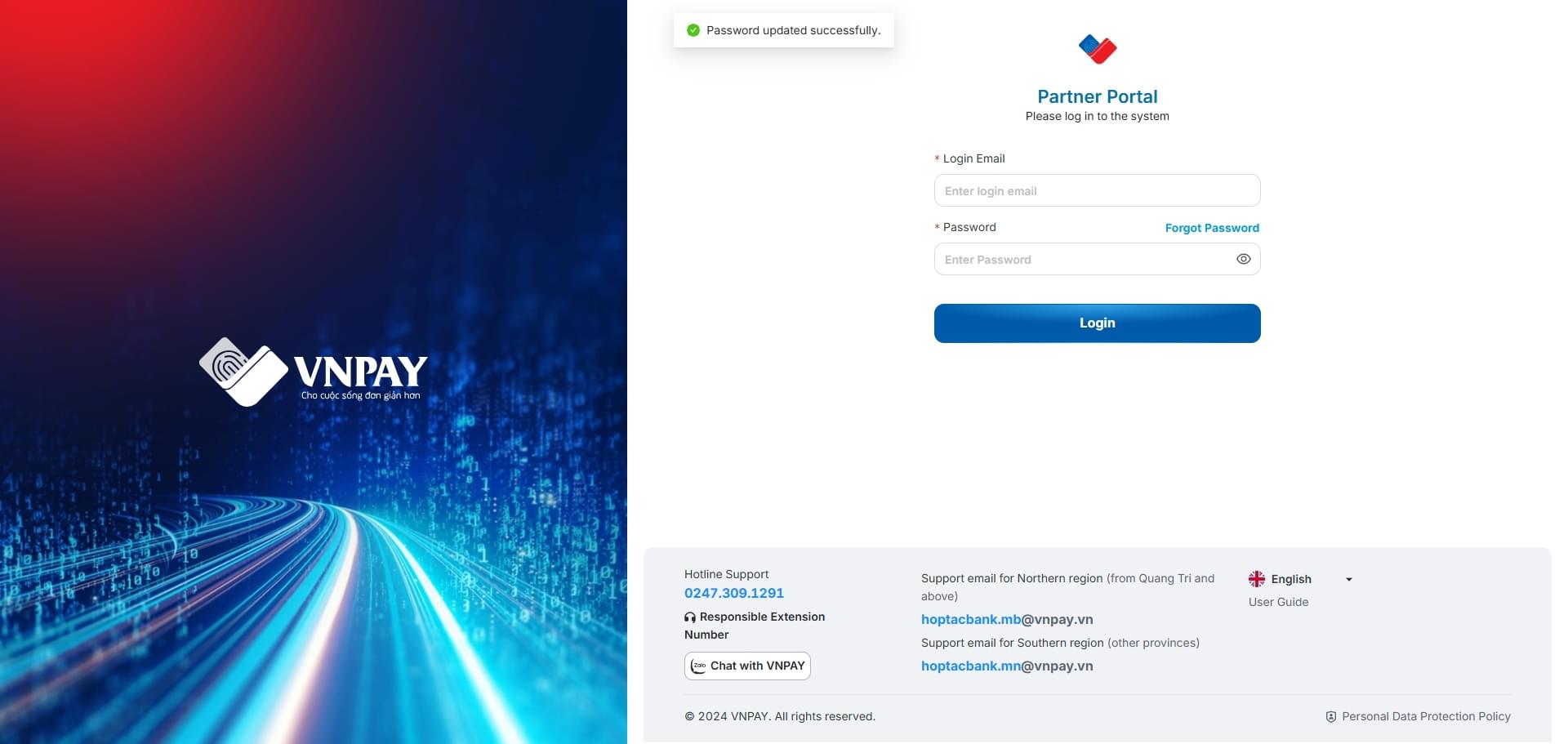
The user will be redirected to the Login screen and a message will be displayed: Password updated successfully
Note: The password must meet the following requirements
  • Minimum length of 12 characters, including at least: 1 digit, 1 uppercase letter, 1 lowercase letter, 1 special character
  • Use only English characters (do not use Vietnamese diacritics).
  • No spaces allowed.

B. Expired Password

1

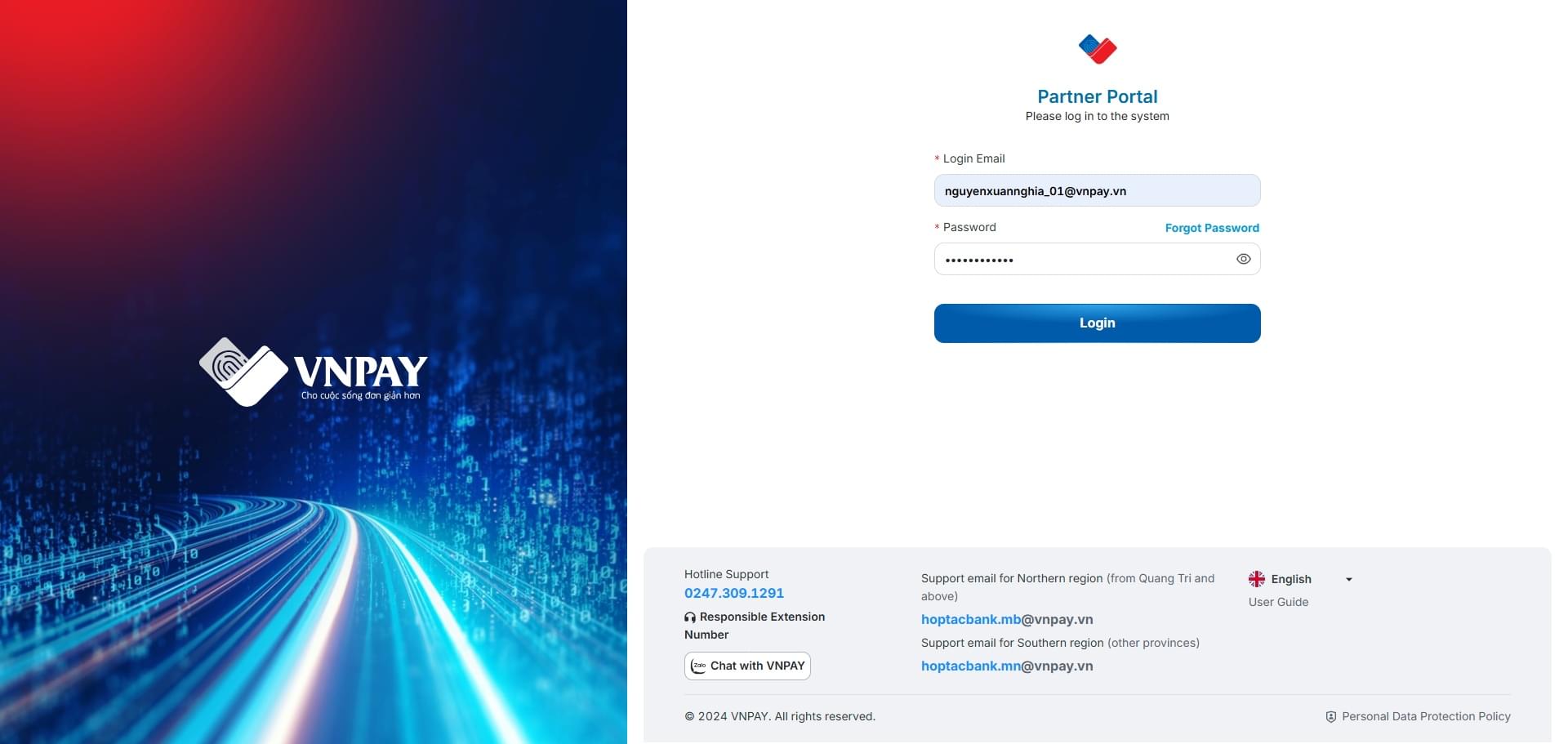
On the system Login screen

  • Enter your Email / Password
  • Click the [Login] button
2

The system notifies that the password has expired and requires a Password Update

  • Enter New Password / Confirm New Password
  • Click [Confirm] to update the new password